Global leaders in Smart Lockers & Smart Experiences
We design and deliver integrated systems for streamlined check-ins, secure storage, and enhanced visitor management. Our trusted partner network and focus on sustainability, data security, and customer success drives us to provide the most effective and user-friendly solutions.
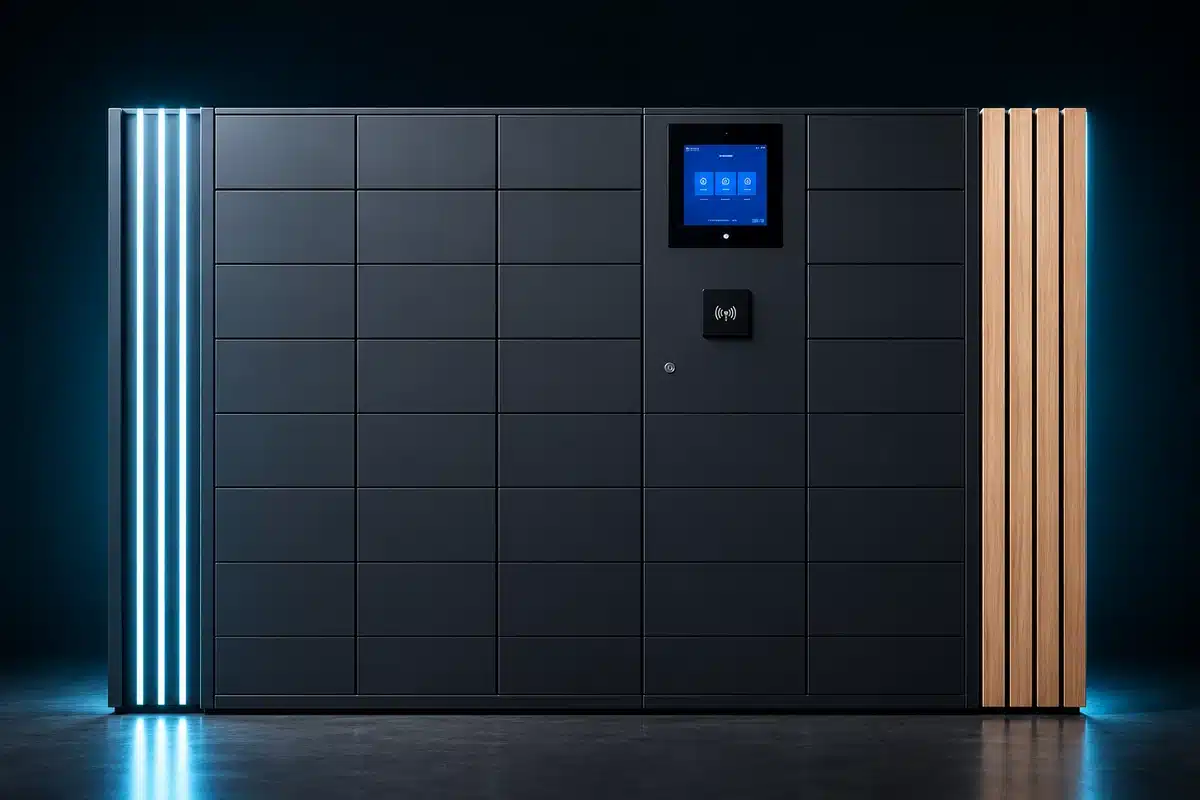
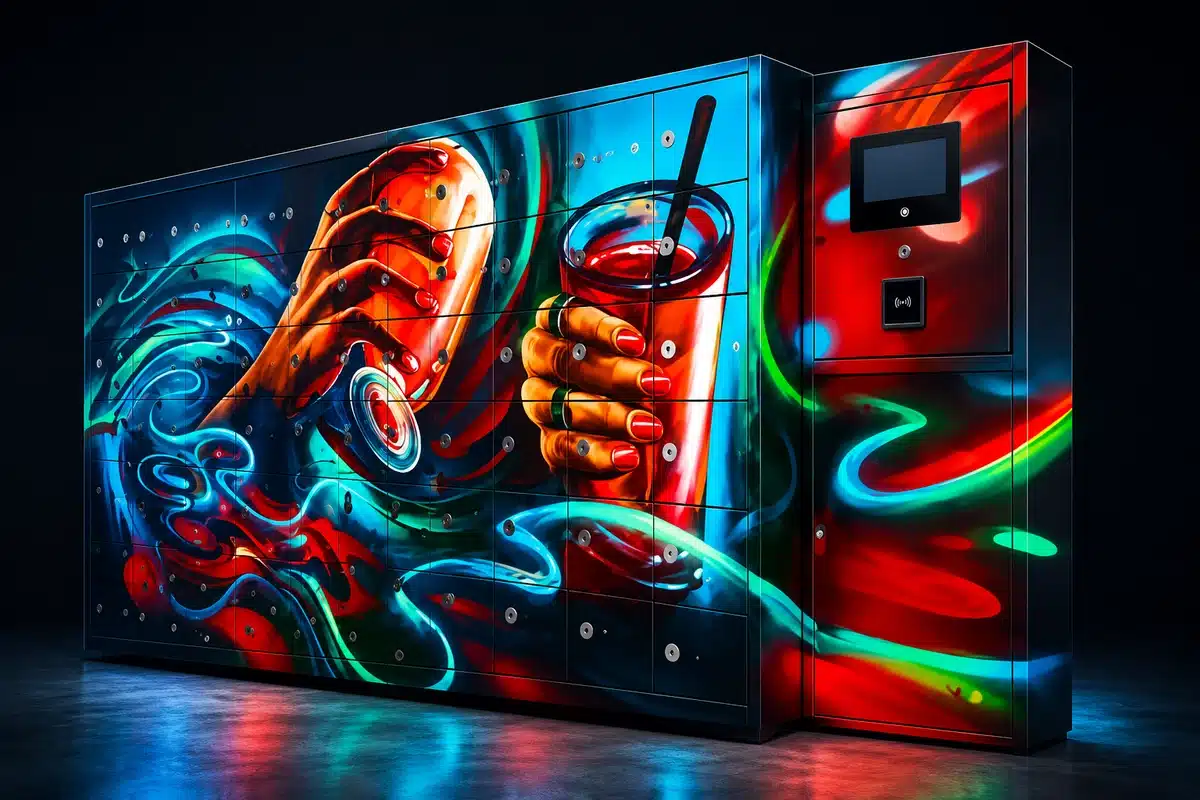
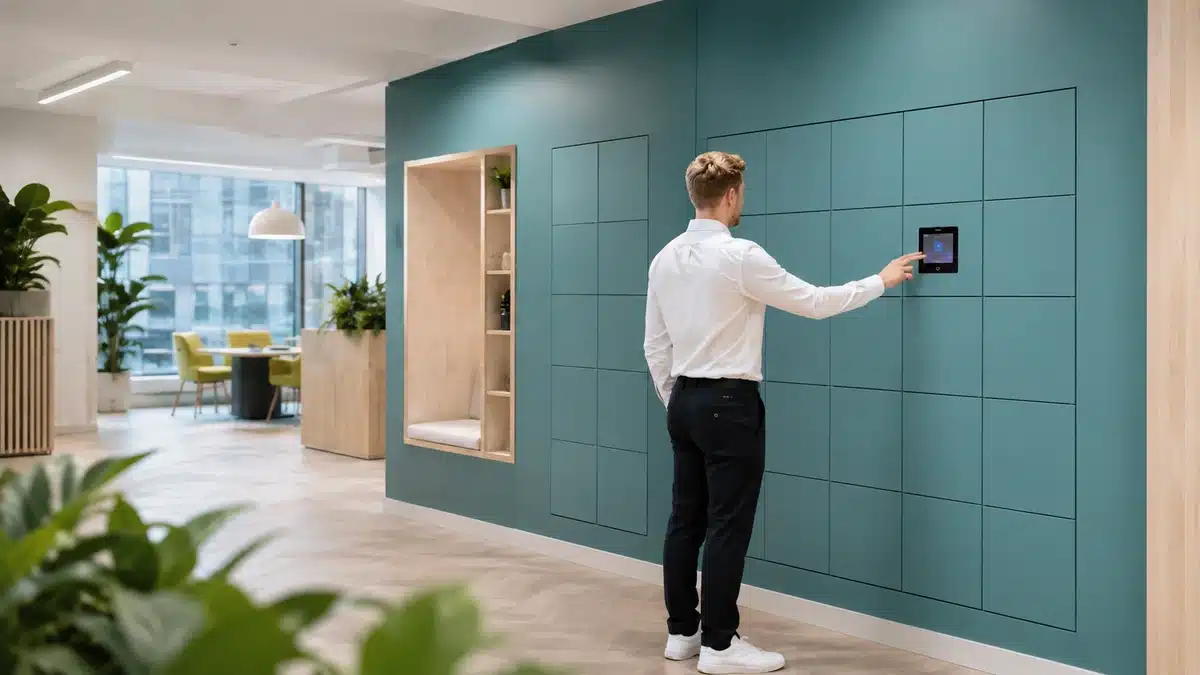
Vflex Smart Lockers, Powered by Keynius, are a state-of-the-art product with quality in-house manufacturing, intelligent design, and a cloud-based platform that can support multiple locker workflows in one smart locker wall.
Vflex Smart Lockers, Powered by Keynius, are a state-of-the-art product with quality in-house manufacturing, intelligent design, and a cloud-based platform that can support multiple locker workflows in one smart locker wall.
Vflex Smart Lockers, Powered by Keynius, are a state-of-the-art product with quality in-house manufacturing, intelligent design, and a cloud-based platform that can support multiple locker workflows in one smart locker wall.
Vflex Smart Lockers, Powered by Keynius, are a state-of-the-art product with quality in-house manufacturing, intelligent design, and a cloud-based platform that can support multiple locker workflows in one smart locker wall.
Global leaders in Smart Lockers & Smart Experiences
We design and deliver integrated systems for streamlined check-ins, secure storage, and enhanced visitor management. Our trusted partner network and focus on sustainability, data security, and customer success drives us to provide the most effective and user-friendly solutions.
Global leaders in Smart Lockers & Smart Experiences
We design and deliver integrated systems for streamlined check-ins, secure storage, and enhanced visitor management. Our trusted partner network and focus on sustainability, data security, and customer success drives us to provide the most effective and user-friendly solutions.
Turn a desk booking into a physical place to store belongings.
An employee should see the building, floor, desk and locker together. They need a locker number, simple directions and a clear way to open it—not another system to work out.
▣
One office plan
Desk, date and location provide the information needed to offer storage.
▦
One clear outcome
The employee receives a locker number, location and opening method.
A normal office day
From “I’m working in London” to “Locker B-24 is ready”.
The booking says when and where the employee plans to work. Vpod uses that information to offer storage, control access and record when the locker is released.
Connect the employee, the locker and the workplace record.
The Smart Estate Logistics Platform video shows people using physical storage while the business retains visibility of what is available and what happened.
Agree how booking and storage will work in each office.
When to offer a locker
Choose whether an office day, desk, room or employee request starts the process.
Who can use one
Decide who qualifies and whether they open it by badge, phone or PIN.
Which locker they receive
Set size, floor, zone, accessibility, duration and release rules.
What must be recorded
Choose whether assignment, opening, release and overdue status are recorded in GoBright, the locker system or both.
Who handles problems
Name the team responsible for full zones, failed credentials, overstays and lost items.
How every office runs it
Keep the main process consistent while documenting local zones, hours and contacts.
Integration availability, supported triggers, data direction and delivery scope must be confirmed during solution design. Exact behaviour depends on the agreed GoBright, Vpod and Keynius configuration. This page does not claim a specific customer deployment or functionality beyond the confirmed project scope.
Start with a normal office day
Show us how employees book workspaces and find storage today.
Bring the booking steps, office and floor structure, employee access method, current locker rules and examples of what goes wrong.