Global leaders in Smart Lockers & Smart Experiences
We design and deliver integrated systems for streamlined check-ins, secure storage, and enhanced visitor management. Our trusted partner network and focus on sustainability, data security, and customer success drives us to provide the most effective and user-friendly solutions.
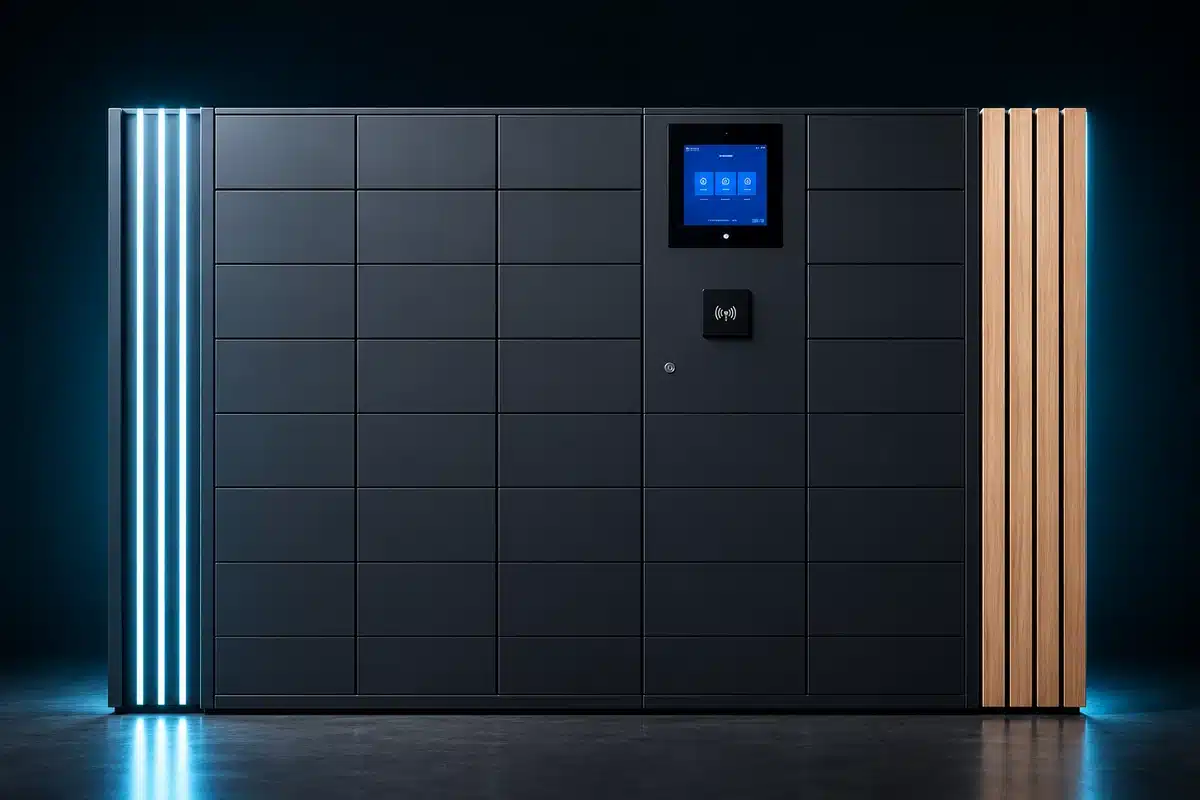
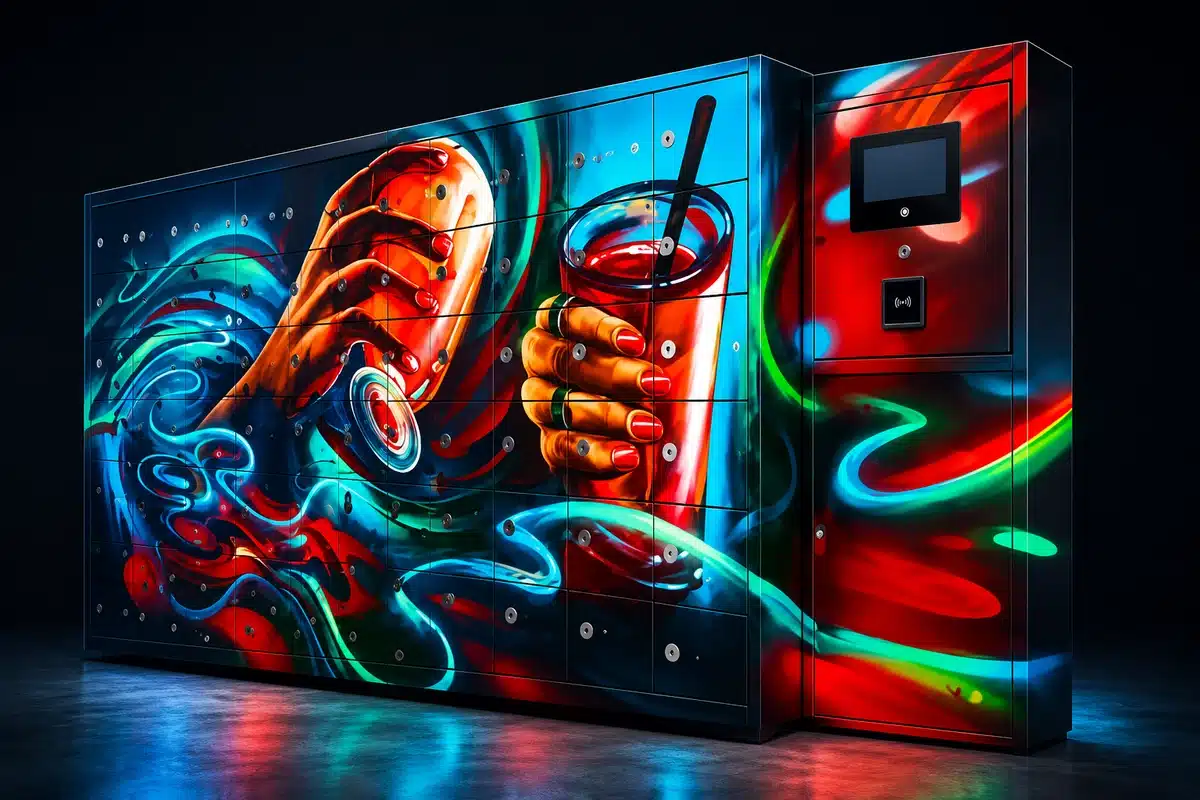
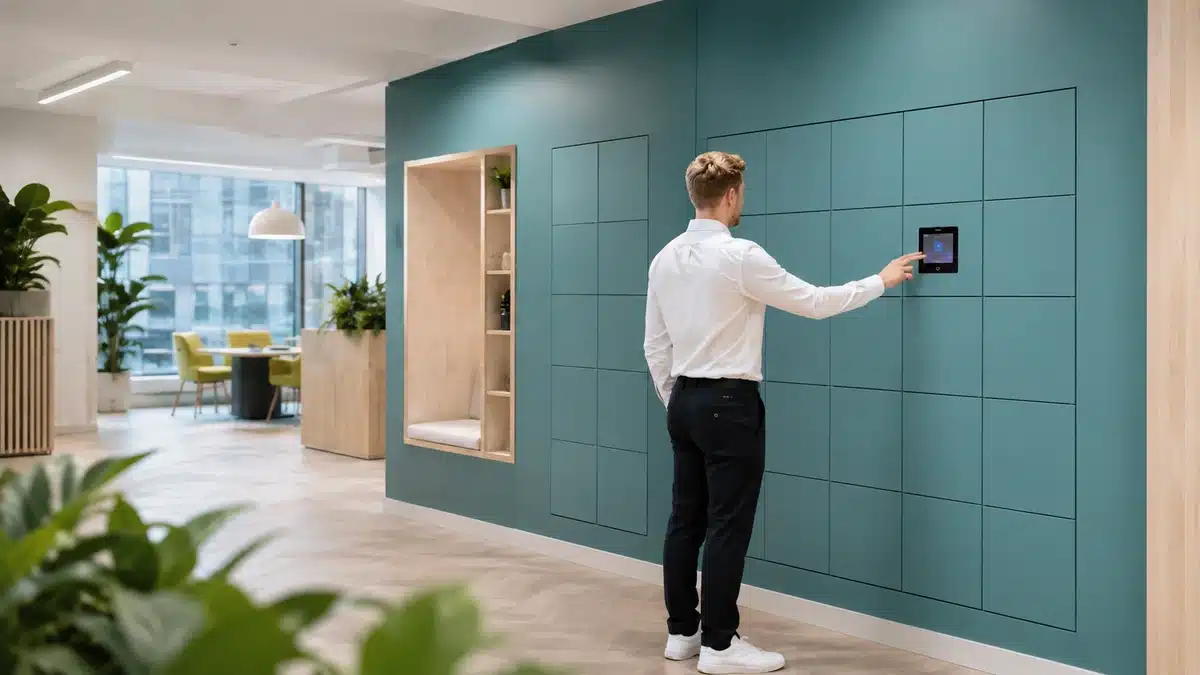
Vflex Smart Lockers, Powered by Keynius, are a state-of-the-art product with quality in-house manufacturing, intelligent design, and a cloud-based platform that can support multiple locker workflows in one smart locker wall.
Vflex Smart Lockers, Powered by Keynius, are a state-of-the-art product with quality in-house manufacturing, intelligent design, and a cloud-based platform that can support multiple locker workflows in one smart locker wall.
Vflex Smart Lockers, Powered by Keynius, are a state-of-the-art product with quality in-house manufacturing, intelligent design, and a cloud-based platform that can support multiple locker workflows in one smart locker wall.
Vflex Smart Lockers, Powered by Keynius, are a state-of-the-art product with quality in-house manufacturing, intelligent design, and a cloud-based platform that can support multiple locker workflows in one smart locker wall.
Global leaders in Smart Lockers & Smart Experiences
We design and deliver integrated systems for streamlined check-ins, secure storage, and enhanced visitor management. Our trusted partner network and focus on sustainability, data security, and customer success drives us to provide the most effective and user-friendly solutions.
Global leaders in Smart Lockers & Smart Experiences
We design and deliver integrated systems for streamlined check-ins, secure storage, and enhanced visitor management. Our trusted partner network and focus on sustainability, data security, and customer success drives us to provide the most effective and user-friendly solutions.
When an employee, contractor or visitor is authorised for a building and time window, an agreed workflow can add the correct locker permission, recognise their credential, record the event and expire access when the visit or role ends.
A proposed connection could carry approved building context into employee workplace storage or controlled equipment collection and return. Building admission, locker entitlement and the locker event remain separate decisions. This page does not claim a standard Paxton connector.
A person who can enter the building should not automatically open every locker.
Building access confirms part of the context. The locker workflow still needs to check the person, visit or role, storage purpose, location and expiry before it releases a door.
♙
Building context
The person is authorised for London HQ, Floor 2, from 09:00 to 17:30.
▦
Locker permission
The same person may use Visitor Locker V-12 only during that approved window.
The access-led locker journey
From visitor approval to Locker V-12.
This example shows a contractor approved for a London visit and temporary storage. It is illustrative and does not represent deployed functionality.
TEMPORARY STORAGE READYLocker V-12 allocatedReception zone · permission ends 17:30
▤
01 · APPROVE
Authorise the person or visit
An employee, contractor or visitor receives approved building access for a purpose and time.
⌖
02 · CONTEXT
Check where and when
Building, zone, date, hours and current access status provide the operational context.
✓
03 · PERMISSION
Grant the locker action
An agreed rule permits the right storage type, door, item or return step.
◈
04 · CREDENTIAL
Present the credential
The person uses the agreed Paxton token, card or supported mobile credential.
↔
05 · USE
Store, collect or return
Only the assigned locker and permitted action become available.
▥
06 · RECORD
Timestamp and expire
The agreed access outcome is recorded and temporary permission ends on schedule.
!
When plans or credentials change
If the visit is cancelled, a credential is lost, the person changes zone, access is denied or no locker is available, keep the door secure and route the case to the named owner.
◎
Governing several buildings
Keep approval, event and expiry rules consistent while documenting each site’s readers, tokens, locker zones, time windows, emergency process and support contacts.
Illustrative workflow only. Names, visits, credentials, locations and locker details are examples. Compatibility, supported triggers, credential types, events and expiry behaviour must be confirmed during solution design.
What each team must decide
One visitor experience with clear operational ownership.
Security
Define approved identities, credentials, denied-access response, revocation and emergency access.
Confirm the Paxton system, credential and permission boundaries.
System and version
Identify whether the site uses Net2, Paxton10 or another Paxton product and its current configuration.
Person and visit source
Confirm which system owns employee, contractor and visitor approval and expiry.
Credential compatibility
Identify the exact card, token, reader or mobile credential and mapping method.
Locker permission
Define zone, action, compartment, item and time-window rules separately from building entry.
Events and exceptions
Choose the records required and owners for denial, failure, cancellation and missed collection.
Multi-site governance
Document common rules alongside local hardware, hours, support and emergency arrangements.
Integration availability, supported triggers, data direction and delivery scope must be confirmed during solution design. Exact behaviour depends on the agreed Paxton, Vpod and smart-locker configuration. This page does not claim universal credential compatibility, a native connector, certification, commercial relationship, customer deployment or functionality beyond the confirmed project scope.
Start with a real access journey
Show us how a person enters the building and receives storage today.
Bring the Paxton system and version, credential types, approval source, site and visitor rules, expiry timing, event requirements and failure examples.